


How to DJ on iPhone and iPad
with Serato DJ for iOS
Learn how to DJ on iPhone or iPad with Serato DJ for iOS, a free DJ app built on the same technology as Serato DJ Pro. Stream millions of songs from Spotify, Apple Music and more, and plug straight into 120+ natively supported DJ controllers, mixers and turntables.
Whether you’re setting up Serato for iPhone or Serato for iPad for the first time, or you need help transferring music from your laptop, this guide covers it all: downloading the app, loading your music, connecting your gear and getting your first mix going.
Some of Serato’s biggest names are already on it. A-Trak, DMC world turntablism champion and GRAMMY-nominated producer. DJ Miss Milan, Doechii’s official DJ and GRAMMY-winning producer. Nick Cheo, viral bedroom DJ. And Magie Hue, producer and DJ.
“There are other iOS apps for DJing, but they aren’t Serato. They aren’t the official app.”
– A-Trak | DJ, World Champion turntablist, GRAMMY-nominated producer
Here’s how to get set up.
Step 1: Download Serato DJ for iOS
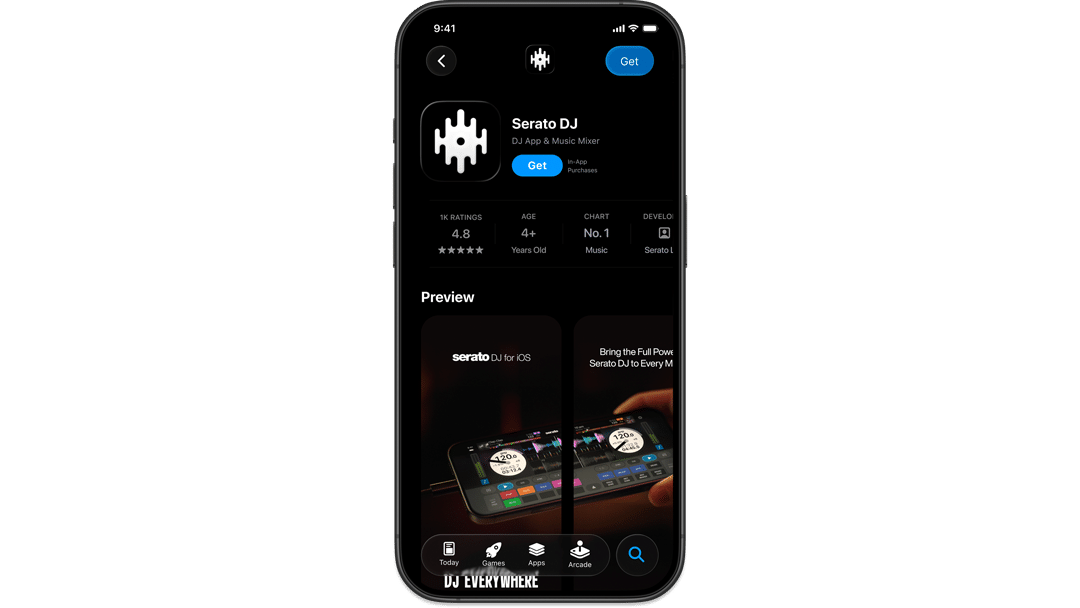
Search “Serato” in the App Store and download the app. It’s one of the most full-featured free DJ apps for iPhone and iPad.
Once you’re in, log in with your Serato account. If you’re an existing Serato DJ user, just log in with your usual details. If you’re new to Serato, create a free account, and start DJing straight away, no subscription required.
If you already have a Serato DJ Suite license, a subscription, or an outright license of Serato DJ for iOS, all features unlock automatically.

Step 2: Load Your Music
There are three ways to get music into Serato DJ for iOS
- Transfer music from your Serato DJ Pro Library
- Stream from Apple Music, Spotify, and More
- Import local files already saved on your iPhone or iPad
Transfer Music From Your Serato DJ Pro Library
The iOS Transfer feature brings everything you’ve built on your computer, crates, cue points, beatgrids and key metadata, straight to your iPhone or iPad over Wi-Fi, USB or USB-C. Just make sure you’ve updated to Serato DJ Pro or Lite Version 5.0 or above on your computer.
You can connect your device to your laptop in two ways. Either plug your device into your computer with a cable, or if the devices are near each other, you can do it wirelessly. If your laptop is running Windows, you’ll need to be on the same Wi‒Fi network.
How to use iOS Transfer
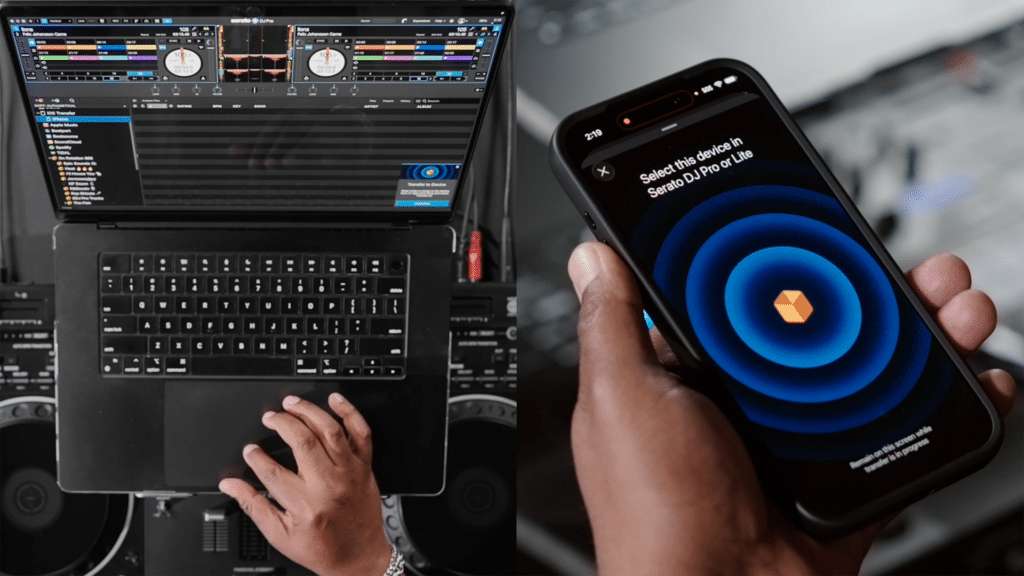
- On your computer, open Serato DJ Pro or Lite and you can find the iOS Transfer option in the library crate panel. Select it.
- On your device, navigate to library and tap Files & Transfer, then tap Transfer.
- Your computer and iOS device will then be paired and you will see your iOS device show up in the crate panel of your computer ready for transferring music.
- Simply select the crates of tracks on your computer you want, drag them to your iOS device crate icon or right+click and select transfer to and they will appear on your device, stored locally.
You don’t need an internet connection to play them back. Check out the Getting Started page for a step by step guide, if you’re still having trouble.
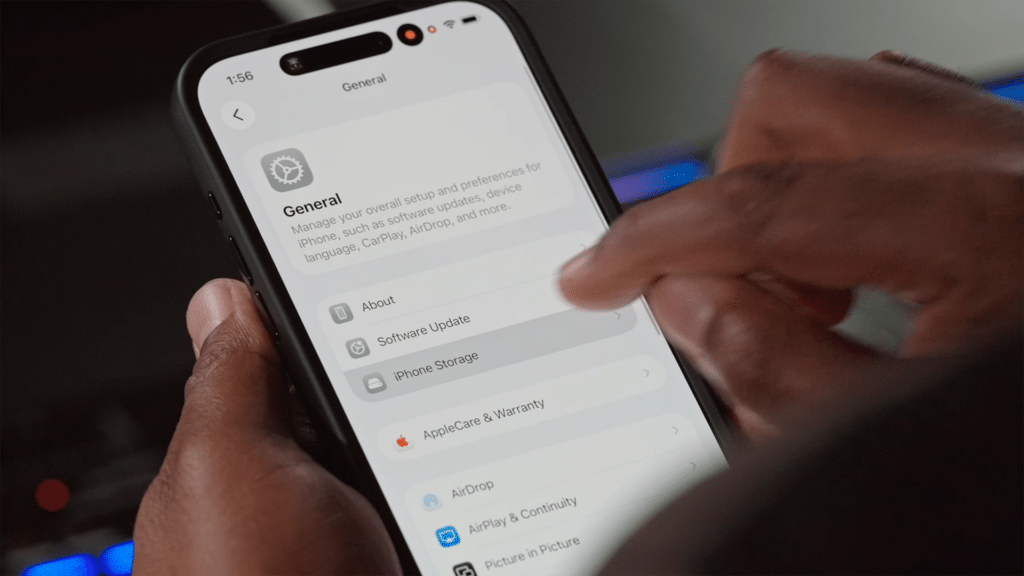
Before transferring, check your available device storage to ensure you have enough space for your music library.
Stream from Apple Music, Spotify, and More
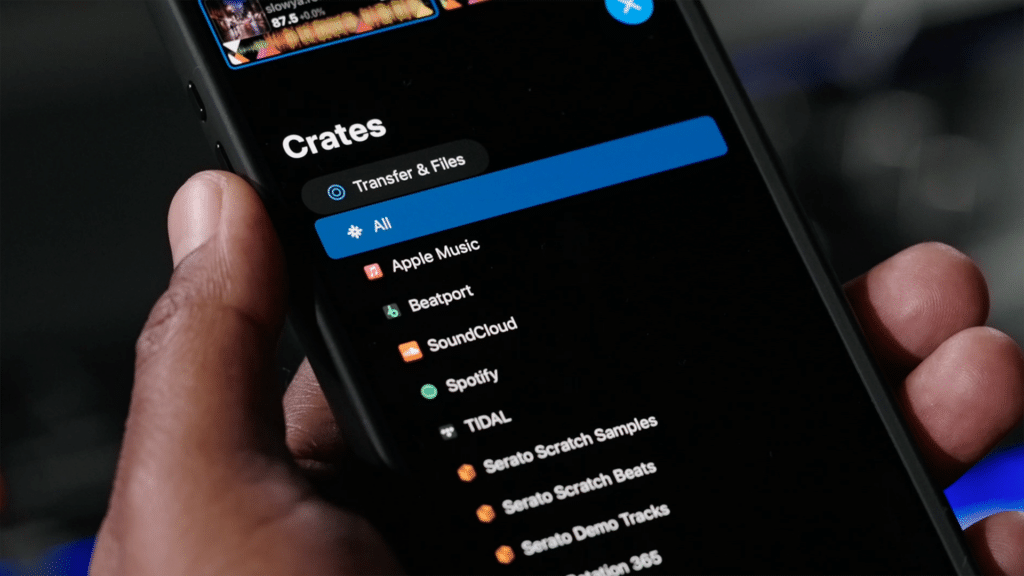
Serato DJ for iOS works with Apple Music, Beatport, SoundCloud, Spotify, and Tidal.
Go to Settings > Streaming Services and log in. Your playlists and saved tracks appear in your library alongside your local files. Search across every connected service from one drop-down menu in your library.
DJ with Local Files on your iPhone or iPad
If you already have music saved in your iPhone or iPad’s Files app, you can import it directly without a laptop. Select the option to import songs or a folder, then locate them in your files. Once you’ve selected your songs, tap Open and Serato DJ will make a crate for them. Just give it a name and you’re good to go.
No music? We’ve thrown in a free sample music library so you can jump straight into mixing.
Step 3: Connect Your Hardware
Serato DJ for iOS plugs straight into over 120 natively supported DJ controllers, mixers, turntables and other hardware from AlphaTheta, Pioneer DJ, Numark, Rane, Hercules and more. Check the Serato Hardware page to see if your DJ hardware is supported.
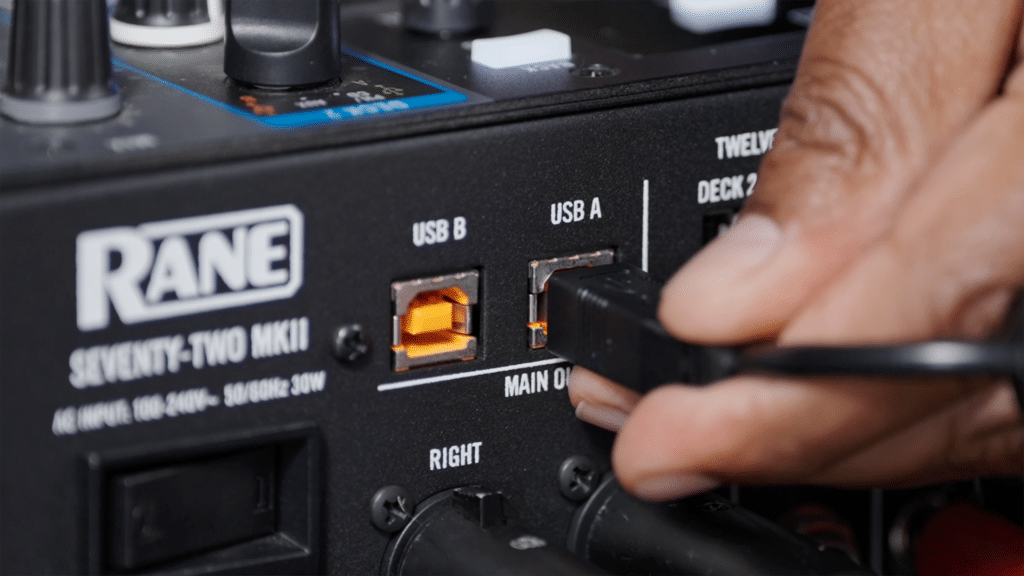
Connection Types
Your iPhone or iPad connects to DJ hardware through either USB-C or Lightning.
- USB-C: iPhone 15 and newer, iPad Pro (2018 and newer), iPad Air (4th generation and newer), iPad mini (6th generation and newer) and iPad (10th generation and newer).
- Lightning: All older models.
Plug into a supported controller and you’ll see a notification on screen, just like in Serato DJ Pro or Lite. The app switches to Hardware Mode with all your controls mapped.
Note: All hardware connects by USB. Wireless connections aren’t supported, and neither is HID mode on gear like CDJs. This applies to every DJ app on iOS, not just Serato.
Using a USB-C Port
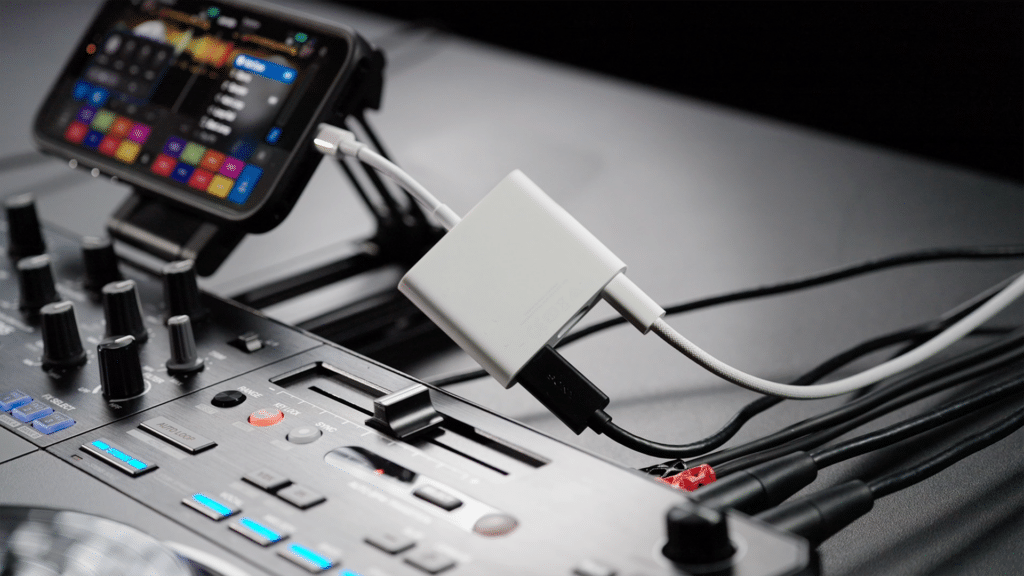
If your iPhone or iPad has a USB-C port, we recommend using Apple’s USB-C Digital AV Multiport Adapter to charge and connect at once. It has a USB-C port, a USB-A port and an HDMI port if you need to output to a screen.
The simplest way to connect this way is to run a USB-C to USB-B cable from your iPhone or iPad to your controller. This draws from your battery, so start fully charged. If you’re using an iPhone, use a MagSafe charger to stay charged wirelessly while you play, especially if you’re doing an extended set. You can always use a USB hub with a power passthrough if you have one too.
Using a Lightning Port
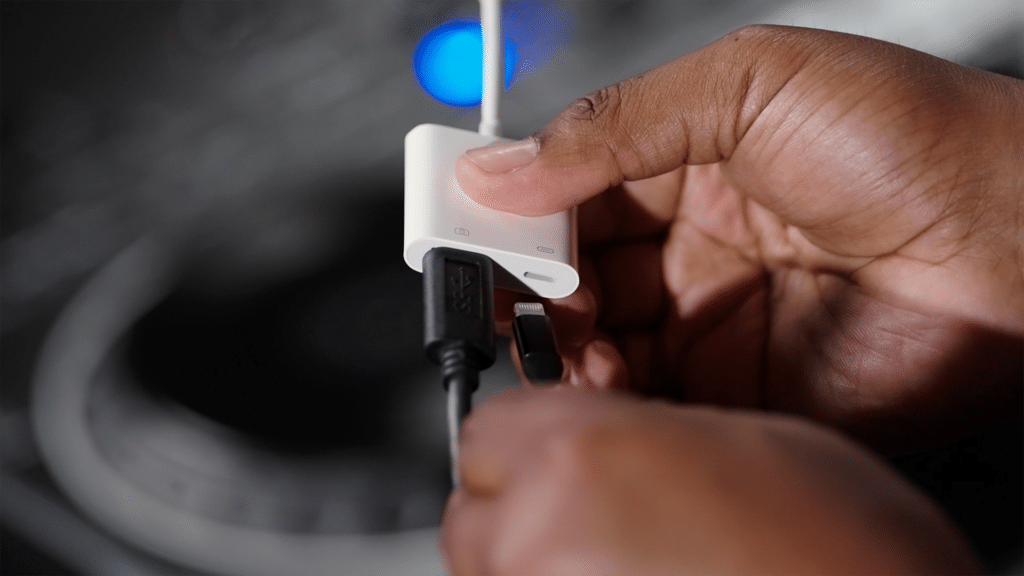
Lightning can’t connect to USB hardware directly, so you’ll need an adapter. We recommend Apple’s Lightning to USB 3 Camera Adapter. Its passthrough port lets you charge while you play, which matters on longer sets.
How to connect:
- Plug the adapter into your iPhone or iPad.
- Connect your DJ hardware to the adapter’s USB-A port.
- Plug your charging cable into the adapter’s Lightning port.
Connecting a DVS Setup
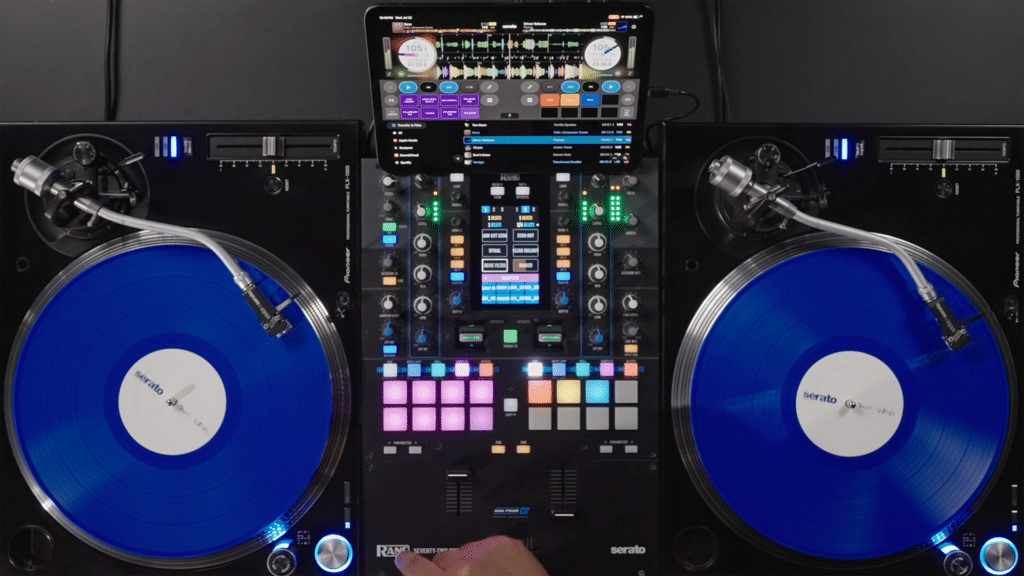
Serato DJ for iOS supports DVS (Digital Vinyl System) with Serato Control Vinyl and compatible mixers. Connect your mixer or audio interface by USB, using the same USB-C or Lightning adapters above. DVS is part of the upgrade, so you’ll need a Serato DJ Suite license, a subscription or an outright license.
DJ Without Hardware Using Handheld Mode
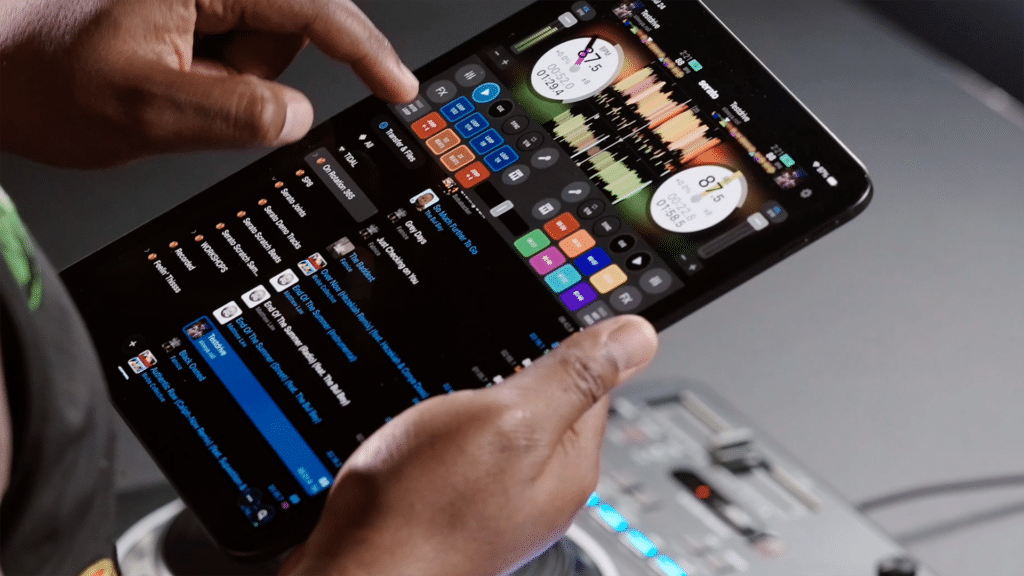
You don’t need any DJ hardware to get started. Serato DJ for iOS works completely standalone as a full touchscreen DJ mixing app for iPhone and iPad in Handheld Mode.
For sound, use your device’s built-in speakers. For the best sound quality, we recommend connecting an external speaker through a USB-C or Lightning audio adapter.
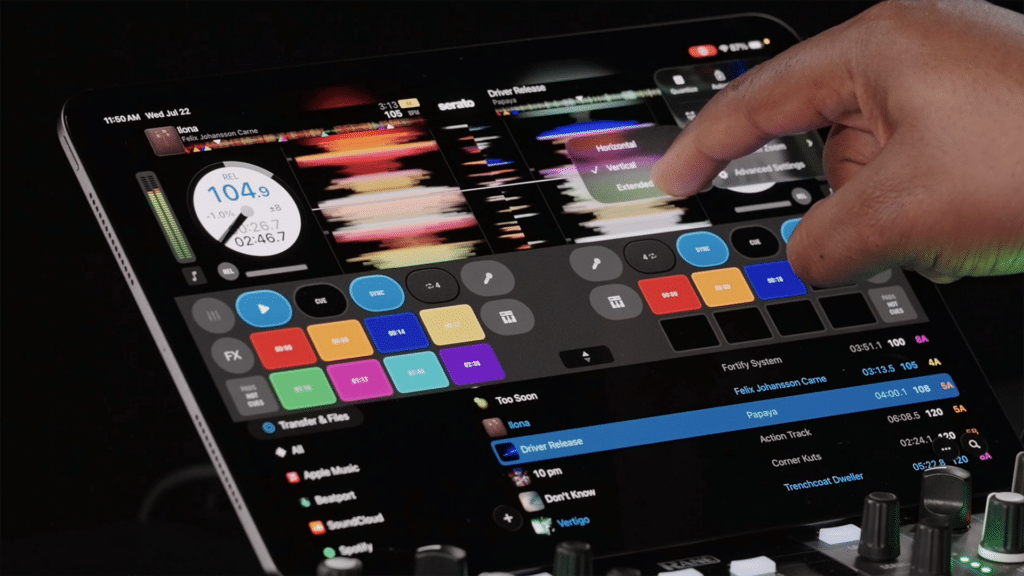
The interface adapts to portrait or landscape orientation. Both give you waveforms, performance pads, volume and BPM controls, pitch bend, and auto loops.
Start DJing on iPhone and iPad with Serato DJ for iOS
You’re set up and ready to play. For deeper dives into features, hardware and troubleshooting, head to the Getting Started page or the Serato DJ for iOS features page.
Download Serato DJ for iOS free and DJ everywhere.